Insuring Macintosh Computer and Small Office & Home Office Network security
| Discussion | Definitions | References | Configuration |
Q: Why should I worry about security? Doesn't my ISP handle that?
A: Well, yes and no. Security begins at home and it is your responsibility. Some ISPs provide decent security measures and others don't have any at all. There are two improtant pieces to a security discussion. Intrusion protection by blocking ports (TCP and UDP) and anti-vrus protection to block virus, worm and Trojan Horse payloads from your computers. The anti-virus discussion is a separate document.
Generally speaking, the model network Internet Extension uses, always includes a router (this may be provided by your ISP), configured to share one IP address from your ISP and distribute a large number of virtually generated IP address to client computers via DHCP, or an Airport Base Station configured the same way. We would recommend a Netgear router, but some clients have Linksys, DLink or others. Either a router or Base station configured using DCHP and NAT will act as a hardware firewall blocking all inbound service. Provisions are built in however, if you have a server on your side of the router or base station that you need to share with the Internet. This is port forwarding or port mapping. This allows you to open a specific service port for a specific machine. This type of hardware firewall is preferred to using the software firewall on your workstation as it does not generate additional cpu load on your workstation. It insures you do not have unwanted network traffic on your Intranet. Do not enable port forwarding unless you have a good reason.
FIREWALL
A firewall protects a computer network from unauthorized access.
Firewalls may be hardware devices, software programs, or a combination of
the two. A firewall typically guards an internal network against malicious
access from the outside; however, firewalls may also be configured to limit
access to the outside from internal users.
Also Known As: proxy, gateway
PORT FORWARDING OR PORT MAPPING
A router or Airport Base Station use Network Address Translation (NAT) to share
a single IP address with the computers that join the network. To provide
Internet
access
to
multiple
computers with one IP address, NAT assigns private IP addresses to each computer
on
the network, then matches these addresses with port numbers. The router or
base station creates a port-to-private IP address table entry when a computer
on
your
network sends a request for information to the Internet.
If you are running a web, AppleShare, or FTP server on your network,
other
computers initiate communication with your server. Since the router or base
station has no table
entries for these requests, it has no way of directing the information to the
appropriate
computer on your network.
To ensure that requests are routed to your web, AppleShare, or FTP server properly,
you
need to establish a permanent IP address for your server and provide inbound
port
mapping information to the router or AirPort Extreme Base Station.
Common TCP and UDP ports (by Apple Computer)
Mac OS X, What is a port? (by Apple Computer) (specifically, Network and IP ports)
If you do not happen to have a router or base station on your network which is acting as a firewall, then you must use the software firewall built in to your Macintosh OS. Internet Cafes, Airport waiting areas, Airport Extreme (or earlier dual port) Base Stations which are only configured as bridges, connecting directly to a cable or DSL modem, connecting to an ISP via modem, etc will require that you use the software firewall. The following discussion is based on complete protection, the default configuration. Please contact us if you have any questions regarding modifications.
First, open the System Preferences and then click on the Sharing Control Panel. Click on the Firewall tab, click on the Start button to turn the firewall on. DO NOT create any additional ports for allowing services unless you know exactly what your requirement is.
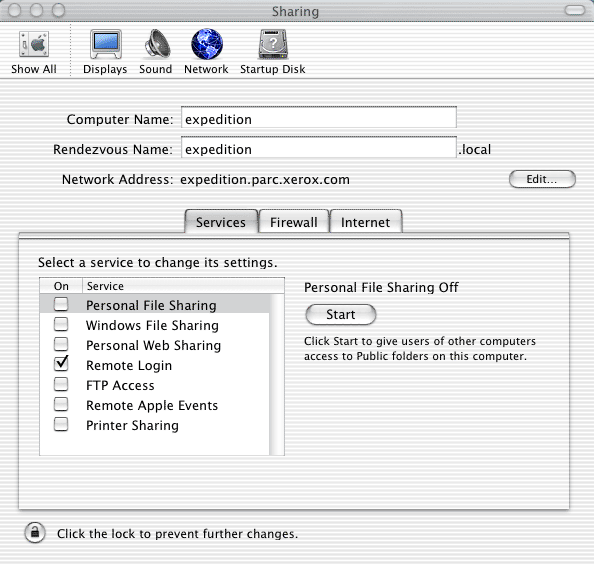
Second, click on the Services tab. These are the default services shown below. They should ALL be off unless you have a really good reason to have enabled one of these services.
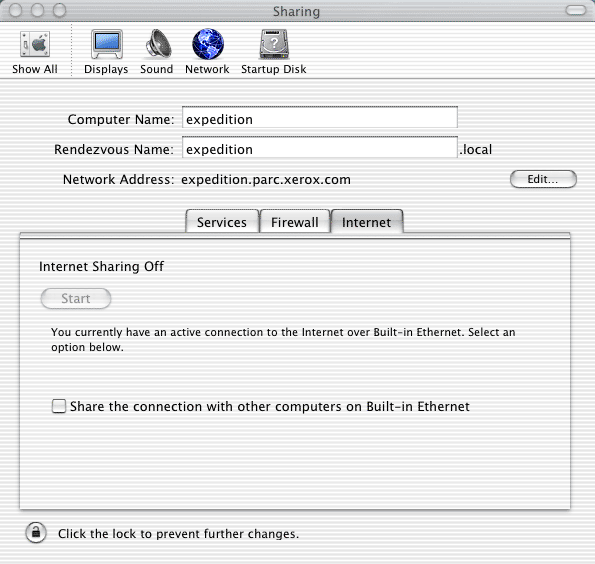
Third, click on the Internet tab. This feature is for one computer connected directly to the Internet via DSL, cable-broadband or modem, to share it's IP address with another computer. Unless, you are going to use your workstation as a router for distributing IP addresses to other computers on your network, do not enable this feature. You do not want to use this. Many ISP's do not allow this. If this feature is enabled, disable it immediately.
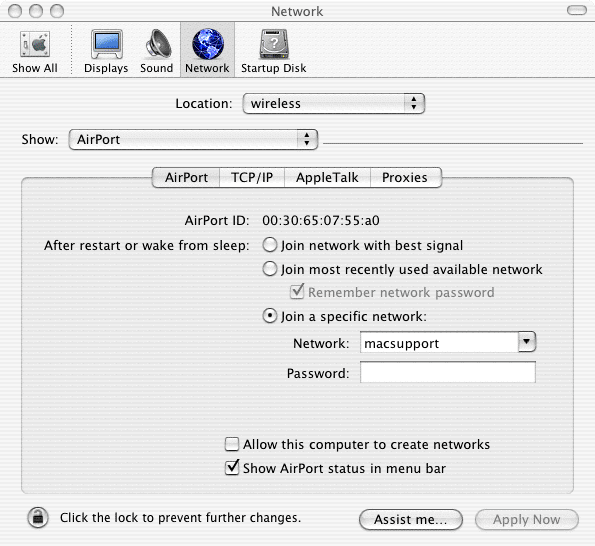
Fourth and only if the computer has an Airport card installed. Click on the network Control Panel in System Preferences. Select Show Airport configuration. Near the bottom of the window, is an option to "Allow this computer to create networks". This is similar to Internet Sharing discussed in the third item above. DO NOT enable this without having a really good reason to do so. If it is on, turn it off.
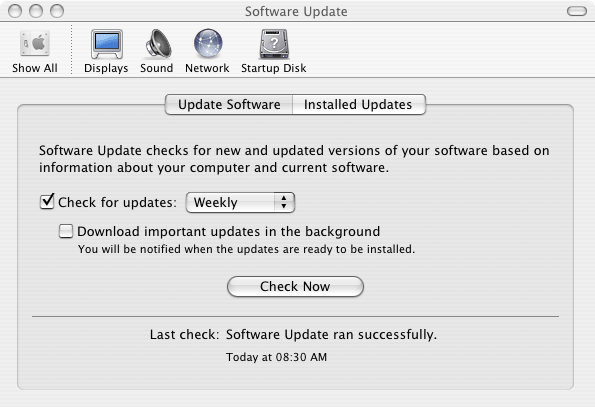
Fifth, and often overlooked. The Mac OS X Software Update configuration. While you may not care about the latest update for an iPod that you may not own, the majority of these updates are imporatnt updates or security patches for the operating system. These updates and patches should be installed. This can be done automatically for you. Go to the System Preferences, to the Software Update Control Panel. Shown below is the appropriate configuration. Once a week, if there are new downloads, a Software Update window will pop up with a selection of software that coincides with what is installed on your machine. However, in some cases, the software may not be installed on your machine. An example would be the iPod updates. You should select all OS updates and security patches. Some application updates are up to you. Let Software Update install the software and reboot your computer as needed.