FTP for Macintosh (Using Fetch FTP Client)
FTP (File Transfer Protocol) is a method of transferring files over the Internet. Fetch is the FTP program. You could use others such as Interarchy or even from a Terminal command line. Some web development application such as Dreamweaver also use ftp to transfer files to and from the web server.
All FTP clients need
the same information in order to configure them. That is.........
1. ftp login name
2. password
3. ftp server name or IP address
4. directory path
With these 4 pieces of information, you can configure any FTP client. Fetch is shown here as an example becuase of it's simple User Interface.
Fetch can be obtained and dowloaded from fetchsoftworks.
Connecting to an FTP Server
Double-click on the Fetch icon in the Finder. The dialog box shown below then appears:
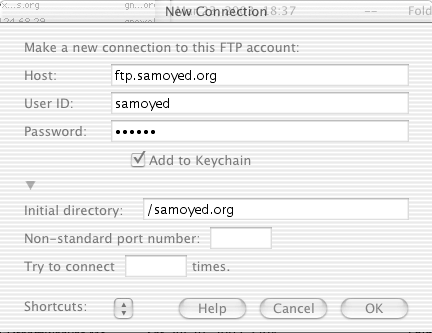
Fetch needs a few pieces of information to establish an FTP connection:
Host: the system to which you want to connect; typically a series of letters and/or numbers separated by periods (e.g., ftp.apple.com, www.people.cornell.edu).
User ID: your identity on the remote system. Public archive sites allow anyone to gain access by typing anonymous in this box. On a server where you have your own files, you would enter your username or other identifier such as your Network ID.
Password: the password for your User ID. An anonymous user is usually asked to enter his or her e-mail address as a password, and some sites will reject a connection when the password does not match the format of an e-mail address. When accessing your own files on a system where you have an account, you would use your own password for the system.
Directory (optional): the location of the files you want to access on the server. The directory pub (short for public) is often used on anonymous FTP servers for storing publicly accessible files. If the directory you specify cannot be found once you are connected to the FTP server, you will see an error message.
Shortcuts (optional): Click on the Shortcuts menu to see a list of popular servers. If the one you want is listed there, select it with the mouse and Fetch will automatically enter the server name for you. If the one you want is not listed, then there is no shortcut available, so you will have to type the server's name in the Host box as explained above.
Adding shortcuts: To add the sites you visit most often to the list of shortcuts, first connect to a site you wish to add, then choose New Shortcut... from Fetch's Customize menu.
After entering a host, user name, password and, optionally, a directory, click the OK button to connect to an FTP server. A screen like the one below, showing directories (folders) and/or files, will appear. Above the list of files you will see a pop-up menu labelled with the name of the directory currently accessed. In the illustration below, this menu is labelled samoyed.org. After connecting you may need to navigate the FTP server to find the file or directory you want.
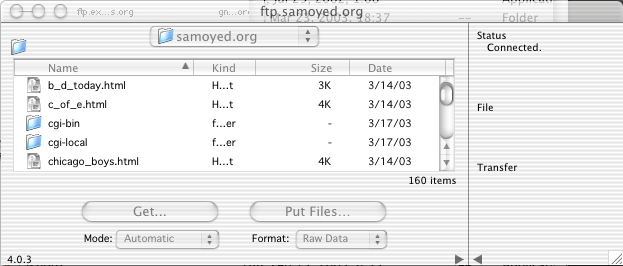
Navigating an FTP Server
Once you've gained access to an FTP server, you can start navigating its directory structure to look for files or other directories. On most systems accessed as anonymous, you'll start out in a top level (root) directory called slash (/). If you don't see anything promising at the top level, try looking for and opening a directory called pub.
You can switch to a directory, such as pub, by double-clicking on its name. When you do, you are likely to see a list of more files and/or directories. FTP directory and file names can be cryptic until you get used to them. If you see a file called "readme.txt" or "index" or something similar, click once on the file name and then pick View Text File... from the Remote menu and read the file that opens up--it will usually contain more information about the files and subdirectories in the directory you're accessing.
Fetch also lets you move around directories by typing out their path names instead of double-clicking; this might be faster for you if you know exactly the directory you want to access. Select the Change Directory... command from the Directories menu and enter the location you want to access. To move back up one or more directory levels, click the pop-up menu above the list of file and directory names, then select whatever location you wish from the list--you can back up just one directory, or, at most, go all the way back to the one you accessed when you connected.
Retrieving Files
When you find a file that you want to retrieve,
- Double-click on its name, or click on it once and then click on the button labelled Get File..., or click on it and drag it to your desktop.
- Fetch will ask you for a name for the file, suggesting the same name the file already has.
- Click the OK button to approve the transfer.
- Use your antivirus software to check the file before you open it.
- Then you can run the downloaded program, or open the file with an application, depending on the type of file.
In some cases, you may have to decompress the file with a utility program such as StuffIt Expander in order to get to the original program or file. Fetch will automatically call on StuffIt Expander to perform this function if necessary, assuming that StuffIt Expander can be found on your system. You can get this program from www.stuffit.com/expander if you don't have it.
File Formats: Automatic, Text, or Binary
Sometimes a file you have just retrieved with Fetch may appear to be broken -- for instance, it may not open properly or may appear to be blank. When this happens you will need to try downloading the file again and specifying whether the file being retrieved is a plain text file, such as a web page, or a binary file, such as an application or a document formatted for a specific application.
At the bottom of the Fetch window are two menus labelled "Mode" and "Format." Initially, both menus are set to "Automatic," which means Fetch will make intelligent guesses about the type of file based on the file's name and the type of server. For example, some common file types that Fetch can recognize are MacBinary files with names ending in .bin, BinHex files with names ending in .hqx, and StuffIt files with names ending in .sit.
If an Automatic download fails, pull down the "Mode" menu and choose Text or Binary. Look at the right side of the Fetch window to see whether the last download was a "Text File" or "Binary Data," and choose the opposite. For help with this choice, choose Fetch Help from the Help menu and select the topic Automatic/Text/Binary and the related help files for specific file formats, Raw Data, MacBinary III, BinHex, and AppleSingle.
Tip: Image (.gif, .jpg) and sound files should be transferred with the "Mode" menu set to Binary and the "Format" menu set to Raw Data. Raw Data is probably the best and therefore preferred method of uploading files.
Storing Files
When you have a file that you want to store on an FTP server, click on the button labelled Put File... or click the file icon on your system and drag it to the Fetch file/directory list window once you connect to the site and have navigated to the correct directory. Fetch will ask you for a name for the file, suggesting the one it already has. Click the OK button to approve the transfer.
Please keep the following facts in mind when storing files:
- Many FTP servers run UNIX, so file names are case-sensitive and problems may result if you try to use a space or special character in the file name when you store it.
- If a file of the name chosen already exists on the FTP server, Fetch will overwrite the existing file with the one you transfer -- it cannot be undone (this differs from retrieving files where Fetch appends a number to a file with the same name, preventing the overwrite).
- If you want to create a new directory on the FTP server for your file before you transfer it, choose Create New Directory... from the Directories menu. Both of the above items apply to directory names too.
- When putting image, sound or movie files (like .gif, .jpg, .mov) onto a server for web pages, remember to transfer using the Raw Data option.
As when retrieving files, you may have to decide which transfer type (text or binary) you need to use for a particular file. Fortunately, when you choose the Automatic setting, Fetch tries to guess for you based on the name the file was given. It's wise to try retrieving or viewing a file immediately after you put it onto an FTP server to be sure that it transfers back to your machine without error. If it does not, try sending another copy to the server in the mode opposite the one used by Fetch.
Disconnecting
You should close your session with an FTP server as soon as you are done transferring files. Some FTP archive sites are used by a lot of people, and there's a good chance someone is waiting to make a connection while you're connected to it. Many sites limit the number of people who can be logged in at the same time. To close a Fetch session, click the Close box in the upper left corner of the window or select Close from the File menu. If you are done with the program, choose Quit from the File menu to exit.
Problems Accessing an FTP Site
- Sometimes your attempt to connect to an FTP site will be refused because the system is already serving its maximum number of people. When this happens, you'll have to try again later when there's less traffic. Some FTP sites limit access to certain periods of time during the day or week. Watch Fetch's status information screen when you connect for details about restrictions if you cannot access a site.
- Sometimes businesses use a firewall for security and you may have trouble getting through. Try setting Fetch to use PASV. Select Preferences and then click on the Firewall tab. Configure this window with appropriate information from your network administrator.
Additional Information
Fetch has a built-in Help system. For more information about Fetch, try using Fetch Help to see "Quick Guide to Fetch" and "A Fetch Tutorial."